🚀 Zaprep: Your Socials on Steroids. 免费开始 — 每月自动发送 1,000 条私信,将互动转化为潜在客户。 ,每月 1,000 条自动私信。
博客How to Use Multiple Monitors for AI Tools, Research and Multitasking
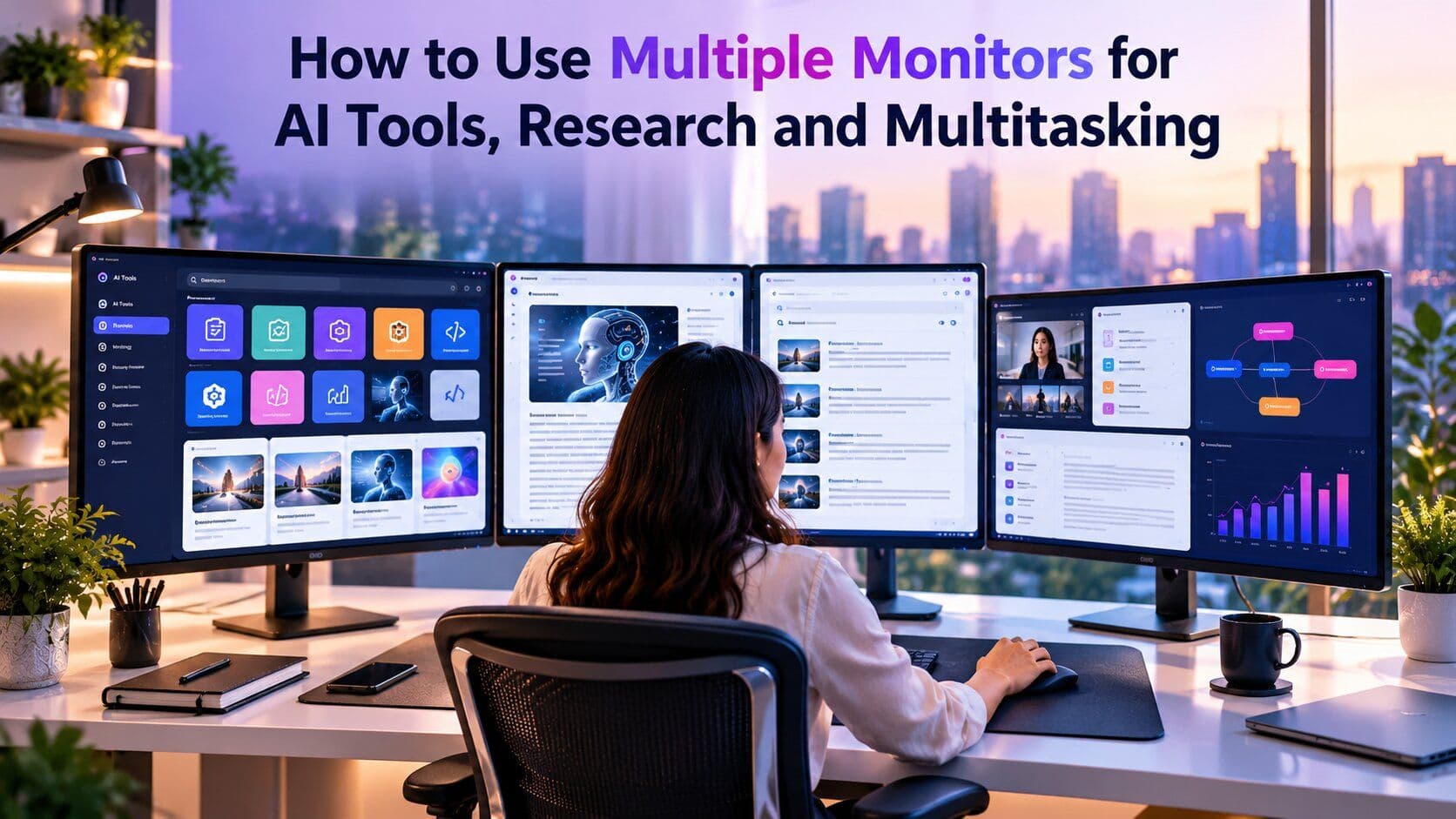
How to Use Multiple Monitors for AI Tools, Research and Multitasking
 Shashank Jain
2026年10月15日
7 分钟阅读
How to Use Multiple Monitors for AI Tools, Research and Multitasking
AI tools have become part of everyday workflows for researchers, marketers, designers, developers, students, and business professionals. But using AI efficiently is not just about choosing the right tool. It is also about creating a workspace that makes it easy to compare information, verify sources, write content, and manage multiple applications at the same time.
This is where multiple monitors can make a significant difference.
Instead of constantly switching between an AI assistant, browser tabs, documents, spreadsheets, and communication tools, you can assign each screen a specific role. One display can hold your AI workspace while another shows source material, and a third can be dedicated to your primary document or project.
The result is a workspace designed around information flow rather than individual applications.
Why Multiple Monitors Work Well With AI
AI-assisted work often involves several steps at once. You might ask an AI tool to summarize a report, check the original source, compare the information with another document, and then incorporate the findings into a presentation.
On a single display, these tasks usually require repeated window switching.
With multiple monitors, different stages of the workflow can remain visible simultaneously.
For example, you could keep an AI chatbot on the left screen, research sources in the center, and your working document on the right. This arrangement allows you to review AI-generated information while keeping the original sources and final output visible.
The benefit is not simply having more pixels. It is reducing the number of times you need to interrupt your current task to find another window.
1. Give Each Monitor a Specific Role
The most effective multi-monitor setups usually have a clear purpose for each screen.
Instead of opening random applications everywhere, assign each display to a particular category of work.
Monitor 1: AI Assistant
Use your primary display for the AI tools you interact with most frequently.
This could include AI chatbots, writing assistants, coding assistants, image-generation tools, transcription software, or AI-powered research platforms.
Keeping the AI interface visible makes it easier to ask follow-up questions without losing sight of your main task.
Monitor 2: Research and References
Use the second display for source material.
Keep browser tabs, PDFs, academic papers, product specifications, spreadsheets, reports, and reference websites here.
This creates an important separation between information generated by AI and information obtained from original sources.
Monitor 3: Final Work
If you have a third screen, dedicate it to the document or project you are actually producing.
This might be a Google Doc, Microsoft Word document, spreadsheet, presentation, code editor, content management system, or design application.
With this arrangement, your workflow becomes:
AI → Research → Final Output
You can move information through the process without constantly minimizing and reopening windows.
2. Use One Screen for AI and Another for Verification
AI can accelerate research, but its output should not automatically be treated as authoritative.
When an AI tool provides a statistic, quotation, product specification, or factual claim, use another screen to check the original source.
This is particularly useful for professional research.
For example, suppose an AI assistant summarizes a 20-page industry report. Keep the AI summary on one screen while opening the original report on another. You can then compare the summary against the source before using the information.
This workflow helps distinguish between:
- AI-generated summaries
- Original source material
- Your own conclusions
Separating these elements visually makes the research process easier to manage.
3. Create a Dedicated Research Monitor
Research often involves more than one browser window.
You may need a search engine, company website, industry publication, government database, PDF, spreadsheet, and notes application open simultaneously.
Instead of trying to fit everything onto your main display, dedicate one monitor to research.
A larger display can be particularly useful here because you can place two browser windows side by side without making text excessively small.
For researchers who frequently work away from a permanent desk, a portable monitor can turn a laptop into a more flexible research station without requiring a full-size desktop display.
4. Keep Your Writing or Project Window Separate
One of the biggest advantages of multiple monitors is maintaining a distraction-free primary workspace.
If you are writing an article, keep the document on one screen. Put research material and AI tools elsewhere.
This prevents you from repeatedly switching away from your document every time you need to check a source or ask a question.
The same approach works for other projects.
A developer can keep code on one screen and documentation or an AI coding assistant on another. A designer can keep the main canvas on one display while using AI image tools and reference material on another.
The principle remains the same: keep the active creation environment stable.
5. Use Multiple Monitors for AI-Assisted Writing
AI writing workflows often involve several stages.
You might begin by generating an outline, then research individual sections, refine the language, verify facts, and finally edit the finished content.
Multiple displays allow you to separate these steps.
For example:
Screen 1: AI brainstorming and outline generation
Screen 2: Research sources and notes
Screen 3: Final article or document
This setup makes it easier to compare AI suggestions with your own research.
It also reduces the temptation to copy AI-generated text directly into a final document without reviewing it.
6. Build a Better Workflow for Data Analysis
Multiple monitors are particularly useful when working with spreadsheets and data.
A practical arrangement might place the raw dataset on one screen, an AI analysis tool on another, and charts or the final report on a third.
You can then ask an AI tool to identify trends or help create formulas while keeping the original data visible.
For example, if you are analyzing monthly sales data, you could maintain the spreadsheet on the left, use AI to help interpret patterns in the center, and build your presentation or report on the right.
Keeping the original data visible makes it easier to check whether AI-generated conclusions actually match the numbers.
7. Combine AI With Communication Tools
AI is increasingly integrated into email, meetings, messaging platforms, and project-management applications.
A multi-monitor workspace can make these tools easier to manage without allowing them to dominate your primary work area.
For example, keep Slack, Microsoft Teams, or email on a secondary display while your main project occupies the primary screen.
During an online meeting, you can keep the video call visible on one monitor and your notes, agenda, AI meeting assistant, or supporting documents on another.
This is particularly useful for professionals who spend much of the day moving between meetings and focused work.
8. Choose the Right Monitor Arrangement
There is no single correct layout for every user.
A horizontal side-by-side configuration works well for research, writing, and spreadsheets. A vertical monitor can be particularly useful for long documents, coding, messaging, and web pages.
You can also place a secondary display slightly angled toward you if you use it less frequently.
The key is to make the screen you use most often the easiest one to view.
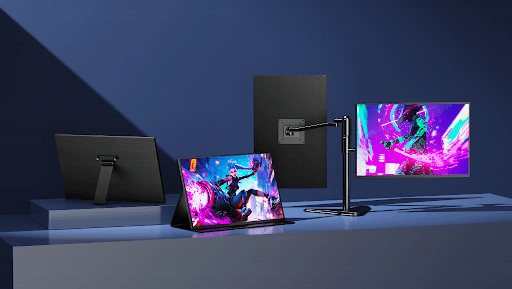
For professional offices, a business monitor with adjustable ergonomics, reliable connectivity, and appropriate screen size can make sense as the foundation of a permanent workstation.
For hybrid workers, the setup may need to be more flexible. A laptop combined with an additional display can provide much of the productivity benefit while remaining easy to move between locations.
9. Avoid Information Overload
More screens do not automatically mean more productivity.
If every display is filled with notifications, browser tabs, chat windows, and dashboards, the extra space can actually become distracting.
Try to establish rules for what belongs on each monitor.
For example:
- Primary screen: current project
- Secondary screen: research
- Third screen: communication or AI tools
You can also hide notifications during periods of focused work.
The goal is not to keep everything visible. The goal is to keep the information you need visible at the right time.
10. Make Your Multi-Monitor Setup Easier to Manage
Cable management becomes increasingly important as the number of displays increases.
Whenever possible, use USB-C connections that can carry both video and power. A compatible dock or hub can further simplify connections for laptops.
Position monitors at comfortable heights and distances, and keep frequently used devices within easy reach.
If you use a laptop as the primary computer, consider a laptop stand or external keyboard and mouse so that the display can be positioned independently from your typing position.
These small ergonomic improvements become increasingly valuable during long AI and research sessions.
A Practical Multi-Monitor Workflow
A simple three-screen workflow can look like this:
Screen 1: Create
Keep your document, spreadsheet, code, or design project here.
Screen 2: Research
Use this display for browser tabs, reports, PDFs, databases, and reference material.
Screen 3: Assist
Keep AI tools, communication applications, notes, and supporting utilities here.
You can also simplify this arrangement for two monitors:
Monitor 1: Main project
Monitor 2: AI + research
This configuration provides many of the benefits of a three-monitor setup without requiring additional desk space.
Final Thoughts
Multiple monitors can turn AI-assisted work from a constant sequence of window switches into a more organized visual workflow.
The biggest benefit comes from assigning each screen a clear purpose. Keep your main project visible, place research material on another display, and use an additional screen for AI tools, communication, or supporting applications.
This approach is useful for writing, data analysis, software development, marketing, academic research, design, and many other knowledge-based tasks.
UPERFECT displays can fit naturally into flexible multi-screen workstations, particularly when users need additional workspace at home, in the office, or while traveling.
The most productive setup is not necessarily the one with the most screens. It is the one that keeps the right information visible while minimizing unnecessary interruptions. Whether you use two displays or three, thoughtful screen organization can make AI tools, research, and multitasking work together much more efficiently.
在高流量博客与文章中展示您的 AI 工具
在 PoweredByAI 获得展示,触达正在发现与您类似工具的用户。建立强大的 SEO 外链,提升 Google 排名并带来持续自然流量。
定向触达的赞助博客展示
带 do-follow 外链的客座文章
提升 SEO 的上下文链接投放
深受 25,000+ 款 AI 工具及成长型初创公司信赖
Enjoyed this? Talk AI tools with other founders and builders.
Join our Slack community