Ludr AI — Understand Any Screen


Is this your AI tool? Claim it today.
Verify ownership, manage your profile, and unlock growth features.
Ludr AI revolutionizes how users interact with screen content by enabling instant, AI-powered explanations and actions directly from any visible area on macOS and Windows. Ideal for developers, analysts, and communicators, it streamlines workflows by integrating advanced GPT-4o and Gemini AI models with intuitive keyboard shortcuts and multi-application support.

Description
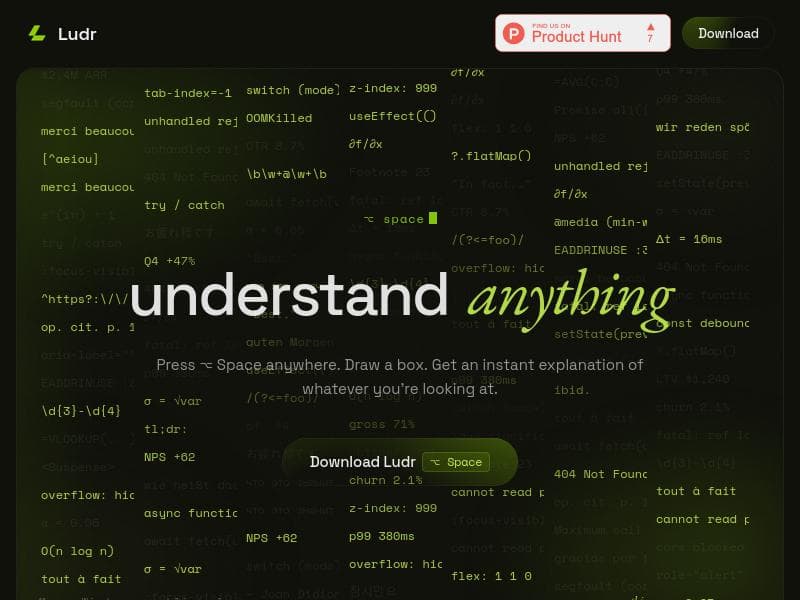
Ludr AI - is a screen AI for macOS and Windows. Press ⌥ Space anywhere to draw a box over code, a chart, a foreign menu, or an error — get a streamed answer right next to your selection. Press ⌘ ⇧ L on highlighted text in any app to ask without a screenshot. Follow-ups remember the whole thread. The model can extract text, fix grammar in place via Accessibility, draft replies into focused fields (Slack,Mail,Telegram), and render real charts inside the answer. Voice input too.
Detailed Description
Ludr AI is an innovative screen-based artificial intelligence assistant designed for macOS and Windows users who want instant, contextual understanding of any content displayed on their screens. Its core purpose is to provide on-the-fly explanations, translations, code interpretations, grammar corrections, and data visualizations directly from any visible screen element without the need to switch applications or manually copy text. By simply pressing the Option+Space keyboard shortcut, users can draw a selection box over any part of their screen—whether it’s a snippet of code, a complex chart, a foreign language menu, or an error message—and receive a streamed, AI-generated answer adjacent to the selection. This seamless interaction model transforms how users interact with digital content, making information extraction and comprehension faster and more intuitive. Key features of Ludr AI include its powerful activation mechanism and multi-modal input support. The primary activation via Option+Space allows users to quickly select any screen area for analysis. Additionally, pressing Command+Shift+L on highlighted text in any application lets users query the AI without taking a screenshot, enabling a smoother workflow. Ludr AI leverages advanced GPT-4o and Gemini AI models to generate accurate, context-aware responses. It supports follow-up questions that remember the entire conversation thread, allowing for deeper exploration of topics. The AI can extract text from images, fix grammar errors in place using macOS Accessibility features, and even draft replies directly into focused input fields in popular communication apps like Slack, Mail, and Telegram. Furthermore, Ludr AI can render real charts within its answers, enhancing data comprehension. Voice input is also supported, providing a hands-free interaction option. Ludr AI is best suited for professionals and power users who frequently interact with complex or multilingual screen content. Software developers can benefit from instant code explanations and error diagnostics without leaving their IDEs. Data analysts and business professionals can quickly understand charts or foreign language menus. Customer support agents and communicators can draft responses and correct grammar seamlessly. Its ability to integrate with communication tools and remember conversation history makes it ideal for multitasking environments where quick, accurate information retrieval is critical. Regarding pricing, Ludr AI is a paid tool, though specific subscription tiers or pricing details are not publicly detailed on the website. Prospective users should visit the official site to inquire about plans and enterprise options. The investment in Ludr AI is justified by its productivity enhancements and the reduction in context-switching time. Compared to alternatives, Ludr AI stands out due to its unique screen selection interface combined with powerful AI models and multi-application integration. Unlike traditional AI chatbots that require manual input or copying text, Ludr AI’s ability to analyze any visible screen content in real time and provide streamed answers next to the selection is a significant productivity booster. Its support for follow-up queries and conversation memory further distinguishes it from simpler screen readers or OCR tools. However, it currently supports only macOS officially as a screen assistant, with Windows compatibility mentioned but potentially less mature. Notable limitations include the paid nature of the tool, which may be a barrier for casual users. Also, while it supports many applications, full integration and accessibility features may vary depending on the operating system and app ecosystem. Users should consider the learning curve for keyboard shortcuts and the necessity of granting Accessibility permissions on macOS. Additionally, as with any AI-powered tool, occasional inaccuracies or context misunderstandings may occur, requiring user discretion. Overall, Ludr AI offers a compelling solution for those seeking to enhance their interaction with screen content through AI-powered explanations, corrections, and data visualizations.
Tool Features
- Instant AI explanation of any screen content
- Activation via Option+Space keyboard shortcut
- Draw a box to select screen area for explanation
- Powered by GPT-4o and Gemini AI models
- macOS compatible screen assistant
Description
Ludr AI revolutionizes how users interact with screen content by enabling instant, AI-powered explanations and actions directly from any visible area on macOS and Windows. Ideal for developers, analysts, and communicators, it streamlines workflows by integrating advanced GPT-4o and Gemini AI models with intuitive keyboard shortcuts and multi-application support.
Ludr AI - is a screen AI for macOS and Windows. Press ⌥ Space anywhere to draw a box over code, a chart, a foreign menu, or an error — get a streamed answer right next to your selection. Press ⌘ ⇧ L on highlighted text in any app to ask without a screenshot. Follow-ups remember the whole thread. The model can extract text, fix grammar in place via Accessibility, draft replies into focused fields (Slack,Mail,Telegram), and render real charts inside the answer. Voice input too.
Detailed Description
Ludr AI is an innovative screen-based artificial intelligence assistant designed for macOS and Windows users who want instant, contextual understanding of any content displayed on their screens. Its core purpose is to provide on-the-fly explanations, translations, code interpretations, grammar corrections, and data visualizations directly from any visible screen element without the need to switch applications or manually copy text. By simply pressing the Option+Space keyboard shortcut, users can draw a selection box over any part of their screen—whether it’s a snippet of code, a complex chart, a foreign language menu, or an error message—and receive a streamed, AI-generated answer adjacent to the selection. This seamless interaction model transforms how users interact with digital content, making information extraction and comprehension faster and more intuitive. Key features of Ludr AI include its powerful activation mechanism and multi-modal input support. The primary activation via Option+Space allows users to quickly select any screen area for analysis. Additionally, pressing Command+Shift+L on highlighted text in any application lets users query the AI without taking a screenshot, enabling a smoother workflow. Ludr AI leverages advanced GPT-4o and Gemini AI models to generate accurate, context-aware responses. It supports follow-up questions that remember the entire conversation thread, allowing for deeper exploration of topics. The AI can extract text from images, fix grammar errors in place using macOS Accessibility features, and even draft replies directly into focused input fields in popular communication apps like Slack, Mail, and Telegram. Furthermore, Ludr AI can render real charts within its answers, enhancing data comprehension. Voice input is also supported, providing a hands-free interaction option. Ludr AI is best suited for professionals and power users who frequently interact with complex or multilingual screen content. Software developers can benefit from instant code explanations and error diagnostics without leaving their IDEs. Data analysts and business professionals can quickly understand charts or foreign language menus. Customer support agents and communicators can draft responses and correct grammar seamlessly. Its ability to integrate with communication tools and remember conversation history makes it ideal for multitasking environments where quick, accurate information retrieval is critical. Regarding pricing, Ludr AI is a paid tool, though specific subscription tiers or pricing details are not publicly detailed on the website. Prospective users should visit the official site to inquire about plans and enterprise options. The investment in Ludr AI is justified by its productivity enhancements and the reduction in context-switching time. Compared to alternatives, Ludr AI stands out due to its unique screen selection interface combined with powerful AI models and multi-application integration. Unlike traditional AI chatbots that require manual input or copying text, Ludr AI’s ability to analyze any visible screen content in real time and provide streamed answers next to the selection is a significant productivity booster. Its support for follow-up queries and conversation memory further distinguishes it from simpler screen readers or OCR tools. However, it currently supports only macOS officially as a screen assistant, with Windows compatibility mentioned but potentially less mature. Notable limitations include the paid nature of the tool, which may be a barrier for casual users. Also, while it supports many applications, full integration and accessibility features may vary depending on the operating system and app ecosystem. Users should consider the learning curve for keyboard shortcuts and the necessity of granting Accessibility permissions on macOS. Additionally, as with any AI-powered tool, occasional inaccuracies or context misunderstandings may occur, requiring user discretion. Overall, Ludr AI offers a compelling solution for those seeking to enhance their interaction with screen content through AI-powered explanations, corrections, and data visualizations.
Frequently Asked Questions
What is Ludr AI — Understand Any Screen?
Ludr AI is a screen-based AI assistant for macOS and Windows that allows users to instantly understand and interact with any content visible on their screen. By drawing a box over code, charts, menus, or errors, users receive streamed AI-generated explanations and can perform tasks like grammar correction and drafting replies directly within apps.
How much does Ludr AI — Understand Any Screen cost?
Ludr AI is a paid tool, but specific pricing details are not publicly listed. Interested users should visit the official website to learn about subscription plans and pricing options.
Who is Ludr AI — Understand Any Screen best for?
It is best suited for professionals such as software developers, data analysts, business users, and communicators who need quick, contextual understanding and interaction with screen content across various applications.
What are the main features of Ludr AI — Understand Any Screen?
Key features include instant AI explanations of any screen content, activation via Option+Space shortcut, the ability to draw a selection box for targeted analysis, support for follow-up questions with conversation memory, text extraction, in-place grammar correction, drafting replies in apps like Slack and Mail, real chart rendering, and voice input.
Does Ludr AI — Understand Any Screen offer a free trial?
There is no publicly available information about a free trial. Prospective users should check the official website or contact the Ludr AI team for trial availability.
What integrations does Ludr AI — Understand Any Screen support?
Ludr AI integrates with popular communication apps such as Slack, Mail, and Telegram by allowing users to draft replies directly into focused input fields. It also supports macOS Accessibility features for grammar correction and works across any screen content.
How does Ludr AI — Understand Any Screen work?
Users activate Ludr AI by pressing Option+Space to draw a box around any screen content they want explained. The AI then streams a contextual answer next to the selection. Alternatively, users can highlight text and press Command+Shift+L to query without a screenshot. The AI uses GPT-4o and Gemini models to generate responses, supports follow-ups, and can perform tasks like grammar fixes and drafting replies within apps.
Socials
Use ToolReviews
No reviews yet. Be the first to share your experience.