🚀 Zaprep: Tus redes sociales al máximo. Empezar gratis — automatiza 1,000 DMs/mes y convierte el engagement en leads. con 1,000 DMs automatizados/mes.
BlogConvert HEIC to JPG locally before using AI image tools
Convert HEIC to JPG locally before using AI image tools
 Shashank Jain
24 oct 2026
5 min de lectura
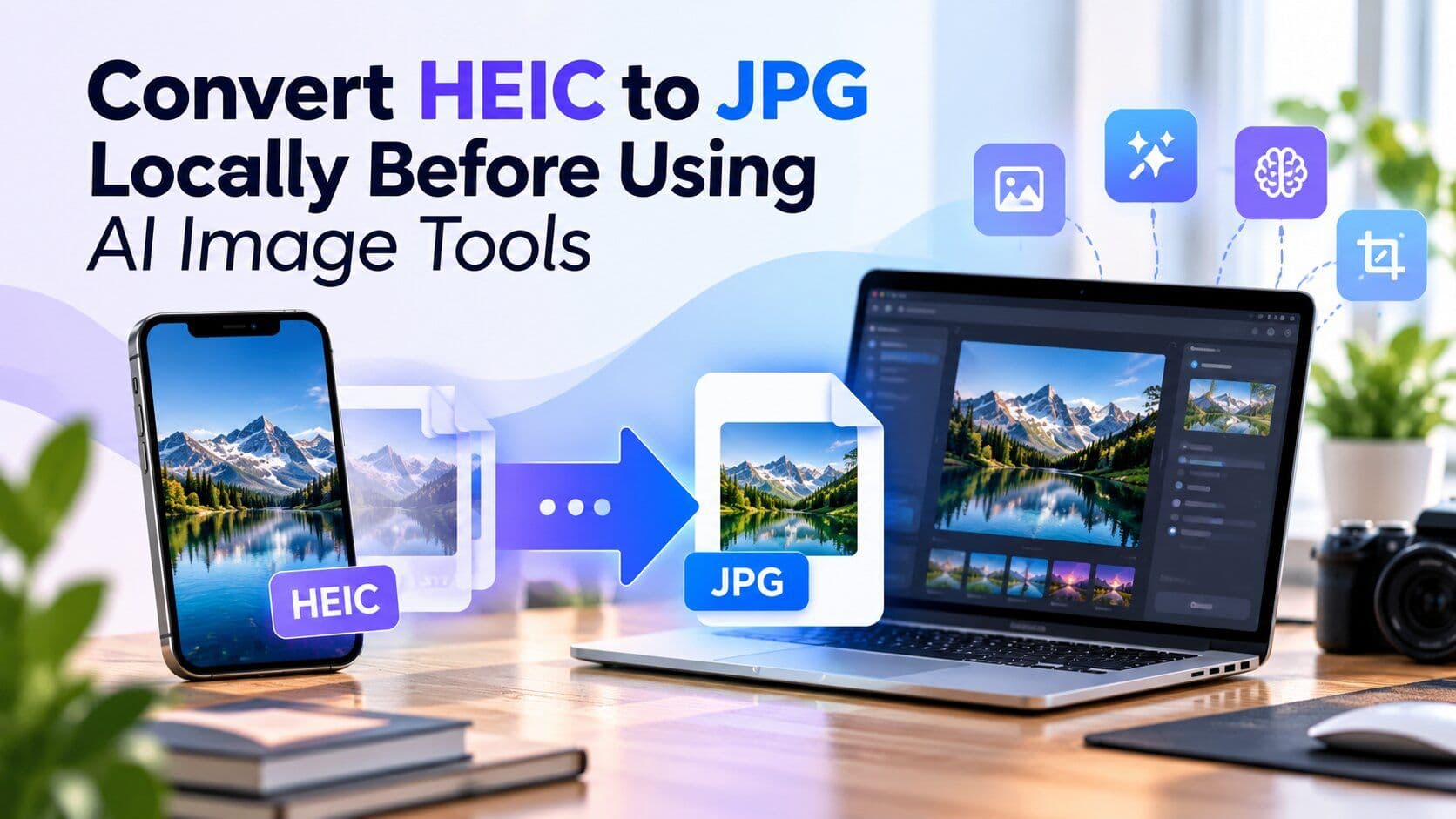
An iPhone photo is ready for a background edit. The picture opens on the phone, but your image tool rejects the HEIC file. If that tool accepts JPG, a browser converter can prepare a copy on your device before you upload it for editing.
Convert HEIC to JPG locally before using AI image tools
An iPhone photo is ready for a background edit. The picture opens on the phone, but your image tool rejects the HEIC file. If that tool accepts JPG, a browser converter can prepare a copy on your device before you upload it for editing.
Morphio's Privacy mode handles this conversion in your browser. The selected photo stays on your device. There is no image upload to a conversion server, and local conversions have no daily or monthly usage quota. You can prepare a compatible file before deciding which editing service should receive it.
Check the editor's input requirements first
AI image tools have different input requirements. Read the upload instructions or error message in the particular editor you plan to use. If it already accepts your HEIC photo and displays it correctly, you may not need a separate conversion.
When the editor requires JPG, create a copy in that format. Renaming a file from .heic to .jpg only changes its name. It does not decode the source image or encode a JPEG that another application can read.
A rejected file does not always need a different format. The image may exceed a size limit, or the upload may have failed. Note the accepted formats and file-size limit before converting an entire selection. Try one JPG in the editor first, so you can separate a compatibility problem from an unrelated upload error.
Keep the conversion step on your device
An upload-based converter receives the source image, processes it on a server, and sends back a result. That adds another destination for a photo you may later send to an image editor.
Local conversion handles the image processing inside your browser. The converter reads the file you select and creates the JPG on your device. For a product photo taken in a home office, that keeps background details such as a shipping label or a document out of the conversion service's server storage.
Local conversion also skips the source upload and the transfer of a server-generated result back to your browser. Avoiding those transfers can shorten the wait on a slow connection. The browser still needs time to decode and encode each photo, so total processing time depends on your device, the images, and available memory.
Local image processing does not mean the whole website works offline or makes no network requests. The page still loads over the internet. The selected photo is processed on your device; other website requests are separate.
Create a JPG copy with Morphio
Open Morphio's HEIC to JPG converter and check the mode selector. Privacy is selected by default for individual HEIC and HEIF images. Cloud is the separate option that uploads files for server-side processing.
- Leave Privacy selected, then choose or drag in the HEIC or HEIF photos.
- Conversion starts after selection. Follow the progress for each file; there is no separate start button.
- Download a successful JPG when it is ready. Each input produces its own output image.
- For several successful results, use the grouped ZIP download to collect them in one package.
Open a downloaded JPG before moving on. If an individual conversion fails, use Retry for that item. The files that have already finished do not need to be converted again.
Privacy accepts individual images, not ZIP archives as input. If the source photos are inside an archive, extract them on your device first. A ZIP containing finished downloads is supported in Privacy; that download package does not merge the pictures into one image.
Work through groups without a conversion quota
Morphio's Privacy conversions do not consume conversion credits. There is no daily or monthly allowance to use up, so you can prepare another group without waiting for a quota to reset or buying credits for local conversion.
The practical limits are the resources available to your browser and device. A large selection can need more memory and take longer than a small one. Start with a manageable group, check its results, and reduce the selection if the browser struggles.
Keep the HEIC originals in a source folder and put downloaded JPGs in a separate working folder. This makes it easier to see which photos are ready for the editor and avoids accidentally choosing the original HEIC again.
Inspect the JPG before another service receives it
JPEG uses lossy compression, so conversion creates a newly encoded copy. Keep the original if you may need to edit or archive the photo later. Do not assume every HEIC-specific feature, such as HDR information, will have an equivalent in the JPG.
Open the JPG, check its orientation, and zoom in on details that matter to your edit. For a product shot, look at the label or texture you want an editor to preserve. For a portrait, look at the converted copy before making further changes, so you have a reference for reviewing later AI edits.
Check dimensions and file size separately. Converting to JPG does not automatically resize a full-resolution phone photo to suit an upload limit. If necessary, use a suitable image editor to resize or further compress the JPG, then check the new file again.
Also inspect metadata you do not want to share. Morphio preserves metadata supported by the target format and conversion path; local conversion does not automatically strip GPS coordinates or other image information. Use a metadata tool to remove unwanted fields when needed.
Finally, look at the photo itself. A readable address in the background remains visible after a format change. Crop or redact details you do not want the next service to receive before uploading the image.
Continue with the editing workflow you chose
Select the checked JPG in your image editor and confirm that its preview is correct. If the converted JPG looks correct but a later edit fails, check the editor's error message before repeating the conversion.
If that editor runs in the cloud, uploading the JPG sends it to that service. Converting locally beforehand does not make a later AI editing session local or private. Check the editor's own processing and retention policy before sending sensitive images.
Morphio also offers Cloud conversion when you need server-side processing or ZIP input. Cloud uploads the source files, and uploaded images are deleted by default after one day. Stay in Privacy when keeping the selected photos on your device during conversion is the priority.
Etiquetas relacionadas
AI ToolsCategorías relacionadas
Herramientas de IADestaca tu herramienta de IA en artículos como este
Llega a usuarios que descubren activamente herramientas de IA en PoweredbyAI y consigue backlinks SEO que mejoran tu visibilidad en Google.
Con la confianza de 25,000+ herramientas de IA y startups en crecimiento
Destaca tu herramienta de IA en blogs y artículos de alto tráfico
Aparece en PoweredByAI y llega a usuarios que buscan activamente herramientas como la tuya. Consigue backlinks SEO potentes que te ayuden a posicionarte en Google y atraer tráfico orgánico constante.
Artículos de blog patrocinados con alcance dirigido
Artículos invitados con backlinks do-follow
Colocaciones de enlaces contextuales para potenciar el SEO
Con la confianza de 25,000+ herramientas de IA y startups en crecimiento
Enjoyed this? Talk AI tools with other founders and builders.
Join our Slack communityBlogs recientes


Enviar tu herramienta

PoweredByAI.app es un directorio de herramientas de IA que ayuda a personas, empresas y creadores a descubrir las mejores herramientas de IA para escritura, programación, diseño, productividad y más.
© 2026 , Producto de011BQ. Todos los derechos reservados.