

Ist das dein KI-Tool? Beanspruche es noch heute.
Bestätige die Inhaberschaft, verwalte dein Profil und schalte Wachstumsfunktionen frei.
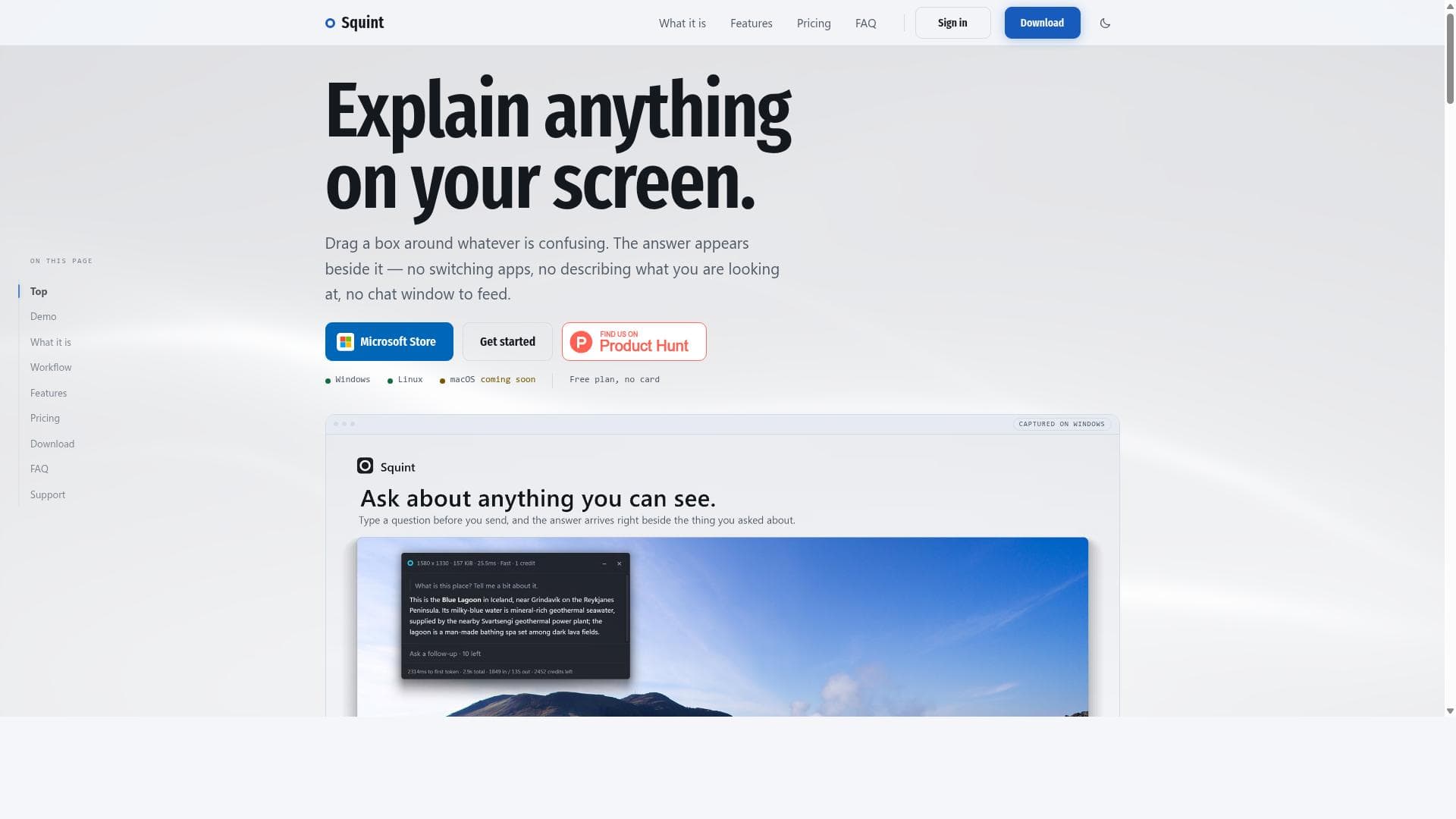
Squint revolutionizes on-screen understanding by letting users press a hotkey, drag a box around any content, and instantly receive explanations right beside it—no app switching or chat windows needed. Ideal for professionals and students alike, Squint streamlines information retrieval on Windows and Linux, with macOS support coming soon.

Beschreibung
Most AI tools make you screenshot, switch to a chat tab, upload, and switch back. Squint cuts that to one step: press a hotkey, drag a box over anything on your screen, and ask. The answer appears right beside what you selected, and you can ask follow-ups. Fast mode usually starts answering in 1-2 seconds; Best mode gives deeper answers. Built in Rust with native screen capture for speed. Works on Windows 10/11 and Linux (Wayland), with a free tier of 3 captures a day.
Ausführliche Beschreibung
Squint is an innovative desktop tool designed to simplify the way users obtain explanations and information about anything visible on their computer screens. Its core purpose is to eliminate the friction typically involved in researching or understanding content displayed on screen by allowing users to press a hotkey, drag a box around any area of interest, and instantly receive a detailed explanation displayed right beside the selected content. This seamless interaction removes the need to switch between multiple applications, describe what you are seeing to a chat window, or manually input queries, streamlining the process of gaining insights and understanding complex information. At the heart of Squint's functionality is its intuitive user interface and workflow. Users activate the tool with a simple hotkey, then drag a selection box around any portion of their screen — whether it’s text, images, code snippets, or other visual data. Squint then processes the selected content and generates an explanation that appears adjacent to the selection, allowing users to stay focused on their original task without interruption. This approach is particularly useful for quickly clarifying confusing terminology, understanding unfamiliar concepts, or getting contextual information without losing workflow momentum. Squint currently supports Windows and Linux platforms, with macOS support planned for release soon, broadening its accessibility across major desktop operating systems. The tool requires no chat window or manual input of queries, making it unique compared to many AI assistants that rely on text-based chat interfaces. This design choice reduces cognitive load and interaction complexity, making it ideal for users who prefer a minimalist and direct approach to information retrieval. Furthermore, Squint offers a free plan that requires no credit card, allowing users to try the tool without commitment. The tool is best suited for professionals, students, researchers, developers, and anyone who frequently needs to understand or analyze on-screen content quickly. For example, software developers can use Squint to instantly explain code snippets or error messages without leaving their IDE. Students can highlight textbook passages or diagrams to get immediate clarifications, while researchers can quickly grasp unfamiliar terms or data visualizations. Its ability to provide contextual explanations without app switching makes it a powerful productivity enhancer across diverse workflows. In terms of pricing, Squint offers a free tier with no credit card required, making it accessible for casual users or those wanting to test its capabilities. Details about premium plans or additional features beyond the free tier are not explicitly stated, but the free plan itself provides significant value by enabling core functionality without upfront costs. Compared to alternatives, Squint stands out due to its unique interaction model that avoids chat windows and manual query input. While many AI tools require users to describe or type their questions, Squint’s drag-and-explain paradigm is more natural and less disruptive. This makes it particularly effective for users who want fast, contextual answers without the overhead of managing a conversation or switching contexts. However, unlike some AI assistants integrated into broader ecosystems or productivity suites, Squint is currently focused solely on screen content explanation, which may limit its scope for users seeking multi-functional AI tools. One notable limitation is the current lack of macOS support, which restricts availability to Windows and Linux users for now, although macOS compatibility is expected soon. Additionally, the tool’s effectiveness depends on the quality of the AI explanations generated, which may vary based on the complexity or nature of the selected content. Users should also consider privacy and security implications when using screen capture-based AI tools, especially in sensitive environments. Overall, Squint offers a highly efficient and user-friendly solution for instantly understanding on-screen content. Its hotkey activation, drag-to-select interface, and side-by-side explanations provide a smooth, distraction-free experience that can significantly boost productivity and comprehension in professional and educational settings.
Tool-Funktionen
- Press a hotkey to activate the tool
- Drag a box around any area on the screen to get explanations
- Answers appear beside the selected area without switching apps
- No need to describe what you are looking at
- No chat window required to feed queries
- Supports Windows and Linux platforms
- macOS support coming soon
- Free plan available with no credit card required
Beschreibung
Squint revolutionizes on-screen understanding by letting users press a hotkey, drag a box around any content, and instantly receive explanations right beside it—no app switching or chat windows needed. Ideal for professionals and students alike, Squint streamlines information retrieval on Windows and Linux, with macOS support coming soon.
Most AI tools make you screenshot, switch to a chat tab, upload, and switch back. Squint cuts that to one step: press a hotkey, drag a box over anything on your screen, and ask. The answer appears right beside what you selected, and you can ask follow-ups. Fast mode usually starts answering in 1-2 seconds; Best mode gives deeper answers. Built in Rust with native screen capture for speed. Works on Windows 10/11 and Linux (Wayland), with a free tier of 3 captures a day.
Ausführliche Beschreibung
Squint is an innovative desktop tool designed to simplify the way users obtain explanations and information about anything visible on their computer screens. Its core purpose is to eliminate the friction typically involved in researching or understanding content displayed on screen by allowing users to press a hotkey, drag a box around any area of interest, and instantly receive a detailed explanation displayed right beside the selected content. This seamless interaction removes the need to switch between multiple applications, describe what you are seeing to a chat window, or manually input queries, streamlining the process of gaining insights and understanding complex information. At the heart of Squint's functionality is its intuitive user interface and workflow. Users activate the tool with a simple hotkey, then drag a selection box around any portion of their screen — whether it’s text, images, code snippets, or other visual data. Squint then processes the selected content and generates an explanation that appears adjacent to the selection, allowing users to stay focused on their original task without interruption. This approach is particularly useful for quickly clarifying confusing terminology, understanding unfamiliar concepts, or getting contextual information without losing workflow momentum. Squint currently supports Windows and Linux platforms, with macOS support planned for release soon, broadening its accessibility across major desktop operating systems. The tool requires no chat window or manual input of queries, making it unique compared to many AI assistants that rely on text-based chat interfaces. This design choice reduces cognitive load and interaction complexity, making it ideal for users who prefer a minimalist and direct approach to information retrieval. Furthermore, Squint offers a free plan that requires no credit card, allowing users to try the tool without commitment. The tool is best suited for professionals, students, researchers, developers, and anyone who frequently needs to understand or analyze on-screen content quickly. For example, software developers can use Squint to instantly explain code snippets or error messages without leaving their IDE. Students can highlight textbook passages or diagrams to get immediate clarifications, while researchers can quickly grasp unfamiliar terms or data visualizations. Its ability to provide contextual explanations without app switching makes it a powerful productivity enhancer across diverse workflows. In terms of pricing, Squint offers a free tier with no credit card required, making it accessible for casual users or those wanting to test its capabilities. Details about premium plans or additional features beyond the free tier are not explicitly stated, but the free plan itself provides significant value by enabling core functionality without upfront costs. Compared to alternatives, Squint stands out due to its unique interaction model that avoids chat windows and manual query input. While many AI tools require users to describe or type their questions, Squint’s drag-and-explain paradigm is more natural and less disruptive. This makes it particularly effective for users who want fast, contextual answers without the overhead of managing a conversation or switching contexts. However, unlike some AI assistants integrated into broader ecosystems or productivity suites, Squint is currently focused solely on screen content explanation, which may limit its scope for users seeking multi-functional AI tools. One notable limitation is the current lack of macOS support, which restricts availability to Windows and Linux users for now, although macOS compatibility is expected soon. Additionally, the tool’s effectiveness depends on the quality of the AI explanations generated, which may vary based on the complexity or nature of the selected content. Users should also consider privacy and security implications when using screen capture-based AI tools, especially in sensitive environments. Overall, Squint offers a highly efficient and user-friendly solution for instantly understanding on-screen content. Its hotkey activation, drag-to-select interface, and side-by-side explanations provide a smooth, distraction-free experience that can significantly boost productivity and comprehension in professional and educational settings.
Häufig gestellte Fragen
What is Squint?
Squint is a desktop tool that allows users to quickly get explanations for anything visible on their screen by pressing a hotkey and dragging a box around the area of interest. It displays answers beside the selected content without requiring app switching or chat window interactions.
How much does Squint cost?
Squint offers a free plan that requires no credit card, allowing users to access its core features without any upfront payment. Details on premium plans are not explicitly provided.
Who is Squint best for?
Squint is ideal for professionals, students, researchers, and developers who need quick, contextual explanations of on-screen content without interrupting their workflow.
What are the main features of Squint?
Key features include hotkey activation, drag-to-select screen area for explanation, answers displayed beside the selection without app switching, no need to describe the content or interact with chat windows, support for Windows and Linux, and upcoming macOS support.
Does Squint offer a free trial?
Yes, Squint provides a free plan with no credit card required, effectively allowing users to try the tool without any commitment.
What integrations does Squint support?
Squint primarily functions as a standalone desktop tool and does not currently advertise integrations with other software platforms or services.
How does Squint work?
Users activate Squint by pressing a hotkey, then drag a box around any area on their screen. The tool processes the selected content and instantly generates an explanation displayed beside it, enabling quick understanding without switching apps or typing queries.
Bewertungen
Noch keine Bewertungen. Teile als Erste:r deine Erfahrung.